

What you need
- A RuAPI key. Console → API Keys → create an
sk-...key. New users usually get a trial balance right away; it works withdeepseek-flash,claude-haiku-5-5andgpt-6-luna. For other models, top up — see Top up. - A Cloudflare account (free).
- A GitHub or GitLab account. Cloudflare copies the bot’s code into it. A separate empty account is best — see below.
- Telegram on your phone or computer.
Step 1. Create the bot and get your ID
1
Bot from @BotFather
Open @BotFather, send
/newbot, pick a name and a username ending in _bot. BotFather replies with a token — save it and keep it private.2
Your Telegram ID
Open @userinfobot and send
/start. It replies with your Id, a number — that’s your ADMIN_ID.Step 2. Deploy the bot to Cloudflare
1
Open the deploy link
deploy.workers.cloudflare.com/?url=https://github.com/TBXark/ChatGPT-Telegram-Workers — sign in to Cloudflare.
2
Connect a Git account
The deploy won’t start until you connect GitHub or GitLab (Connect a Git account to continue). Click the GitHub connection button and grant access.
3
Fill in the form
ADMIN_PASSWORD is labelled optional, but the form won’t submit without it. Use a long random password (20+ characters) and keep it: it opens the bot’s admin panel, which stores your RuAPI key.
4
Start the deploy
The build takes about a minute. Wait until every stage is green.
Step 3. Turn on the workers.dev address
In new projects the*.workers.dev address can be off, and then Telegram can’t reach the bot. Open the project → the Domains tab → switch on the Production address. The Preview line may turn on with it — that’s fine. Copy the Production address — you’ll need it next.
Don’t worry about “anyone with this URL can access it”: only ADMIN_ID can talk to the bot, and the admin panel is password-protected.
Step 4. Log in to the admin panel and bind the webhook
1
Log in
Open
https://<your-project>.<your-subdomain>.workers.dev/admin and log in with ADMIN_PASSWORD.2
Bind the webhook
In the same browser, open 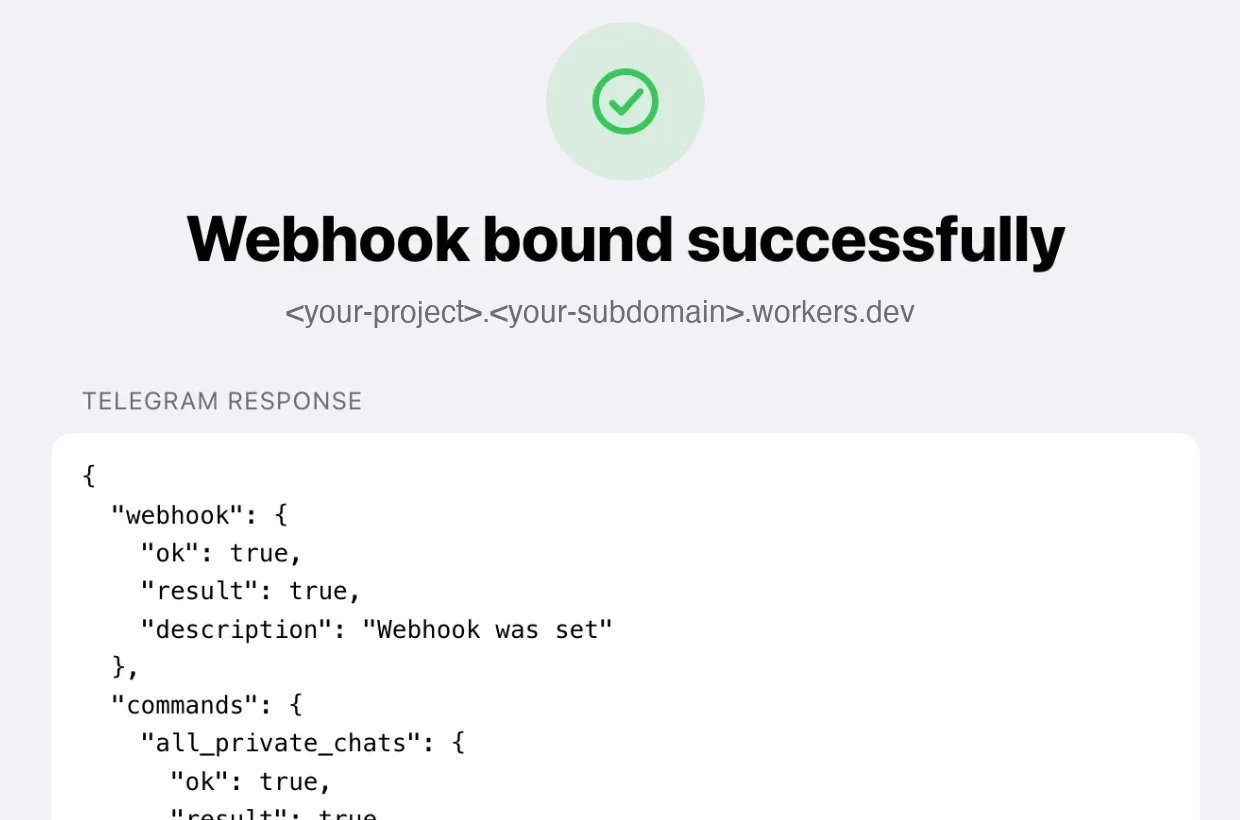
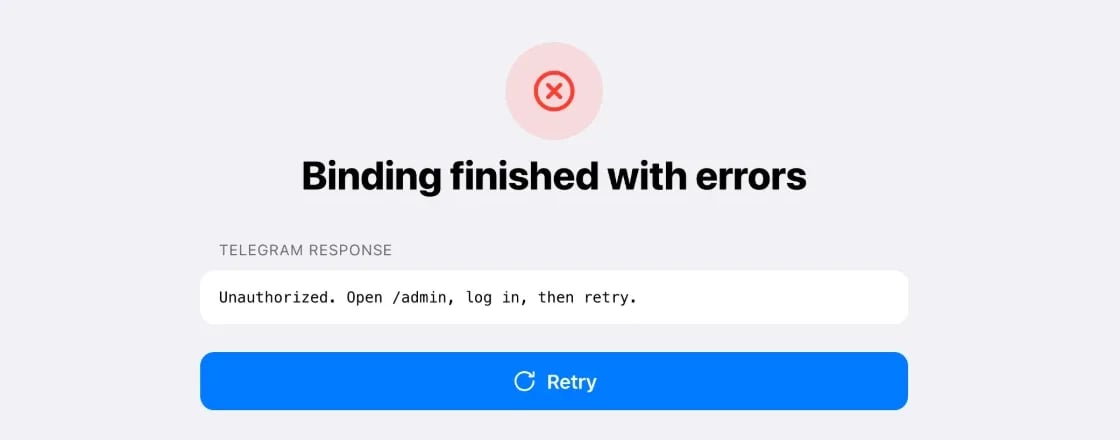
https://<your-project>.<your-subdomain>.workers.dev/init. You should see Webhook bound successfully.Unauthorized. Open /admin, log in, then retry., you’re not logged in yet. Go back to the previous step, then click Retry.Step 5. Connect RuAPI
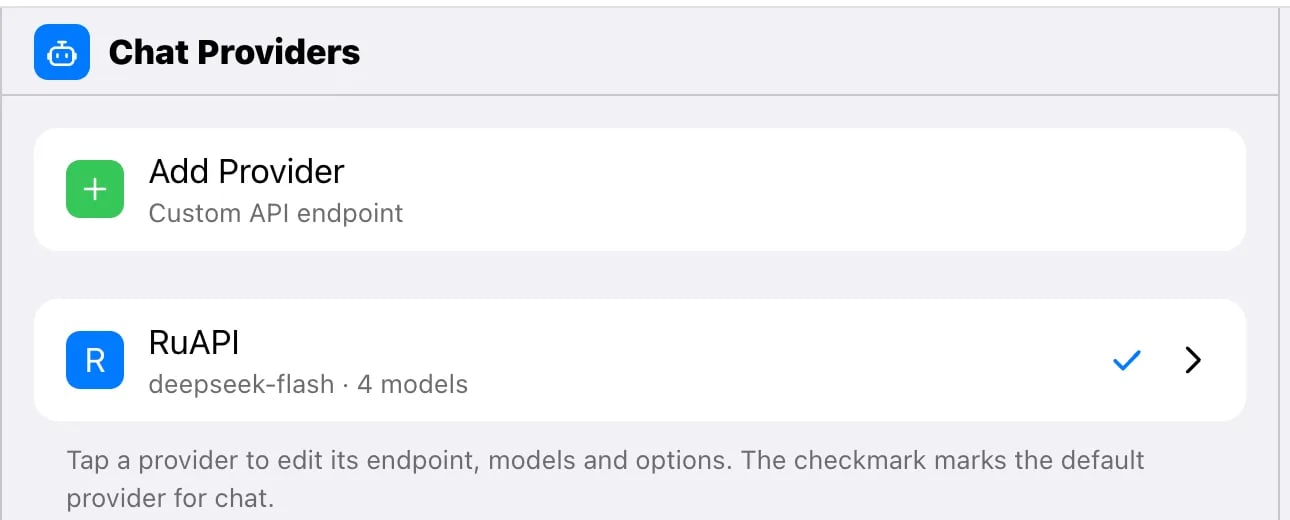
In the admin panel, on the Chat tab, click Add Provider: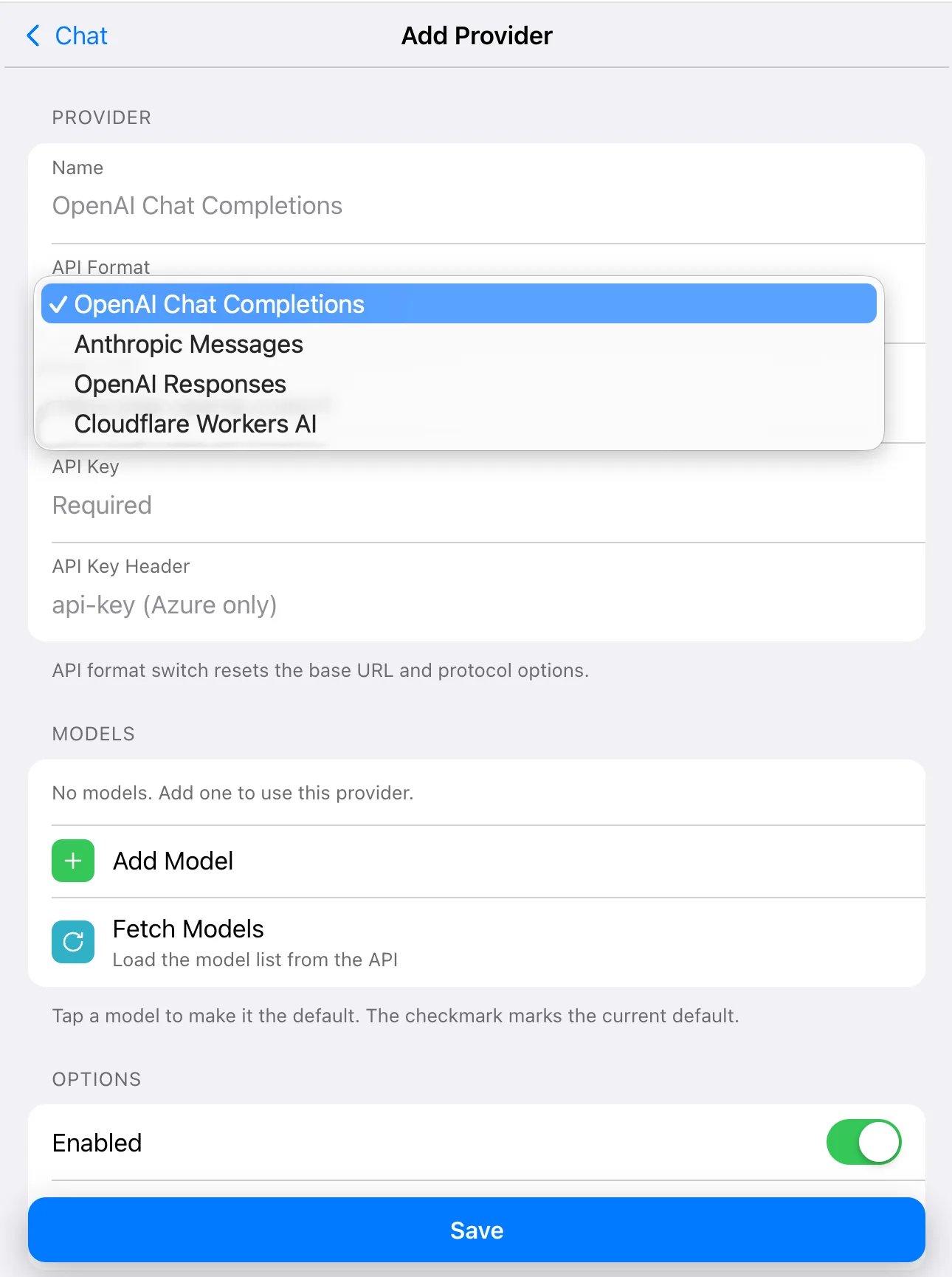
1
Models
Click Fetch Models to load the RuAPI model list. Click + next to the ones you want, e.g. 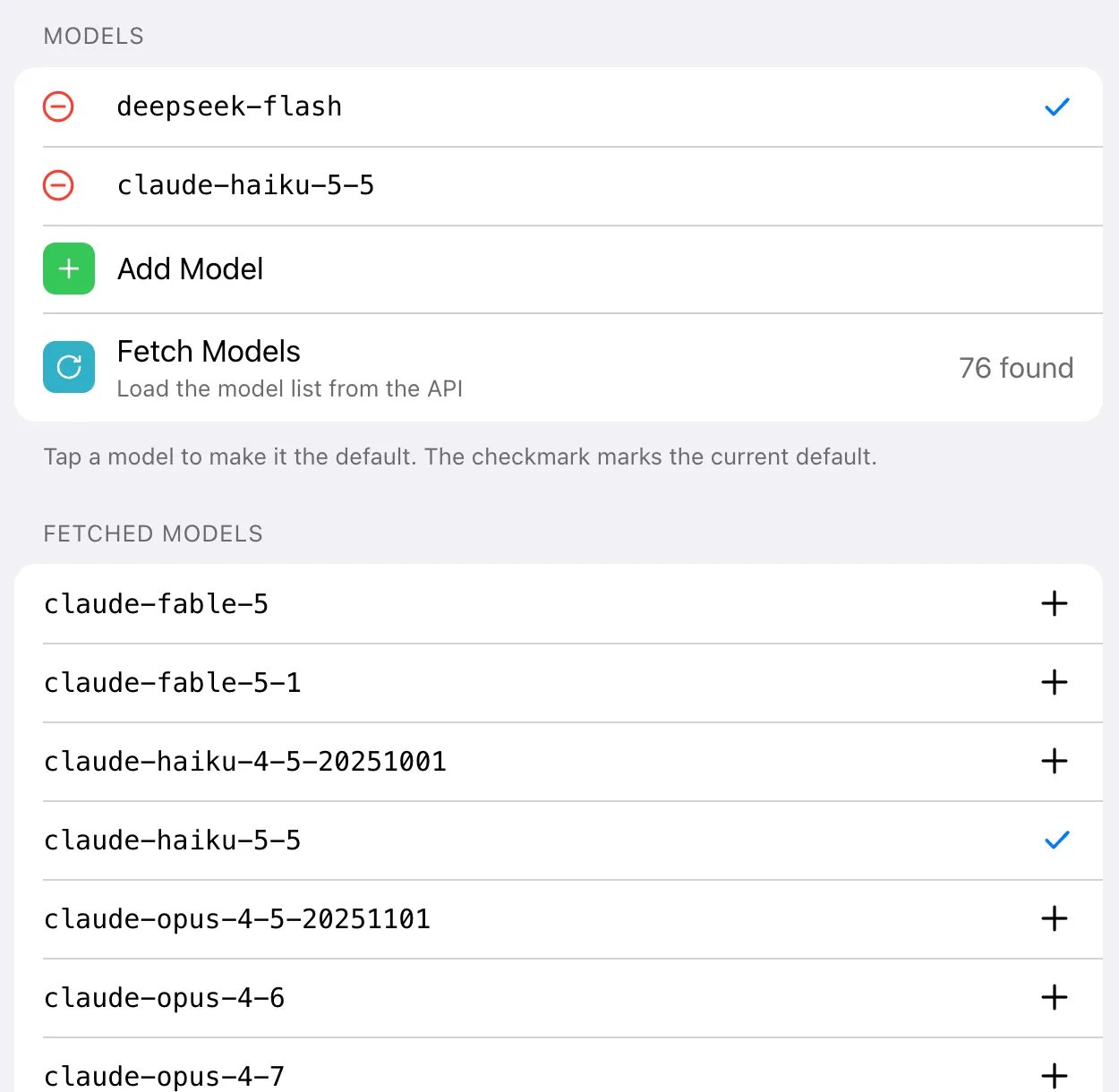
deepseek-flash, claude-haiku-5-5, gpt-6-luna. If the list doesn’t load, add models by hand with Add Model — exact IDs are on the pricing page.2
Default model
Click a model in the Models list — the checkmark marks the default.
deepseek-flash is a good start — one of the most affordable models, see prices.3
Make RuAPI the default and save
Click Set as Default, then Save. RuAPI should get a checkmark in the provider list. If you have several providers, without this the bot may answer through a provider other than RuAPI.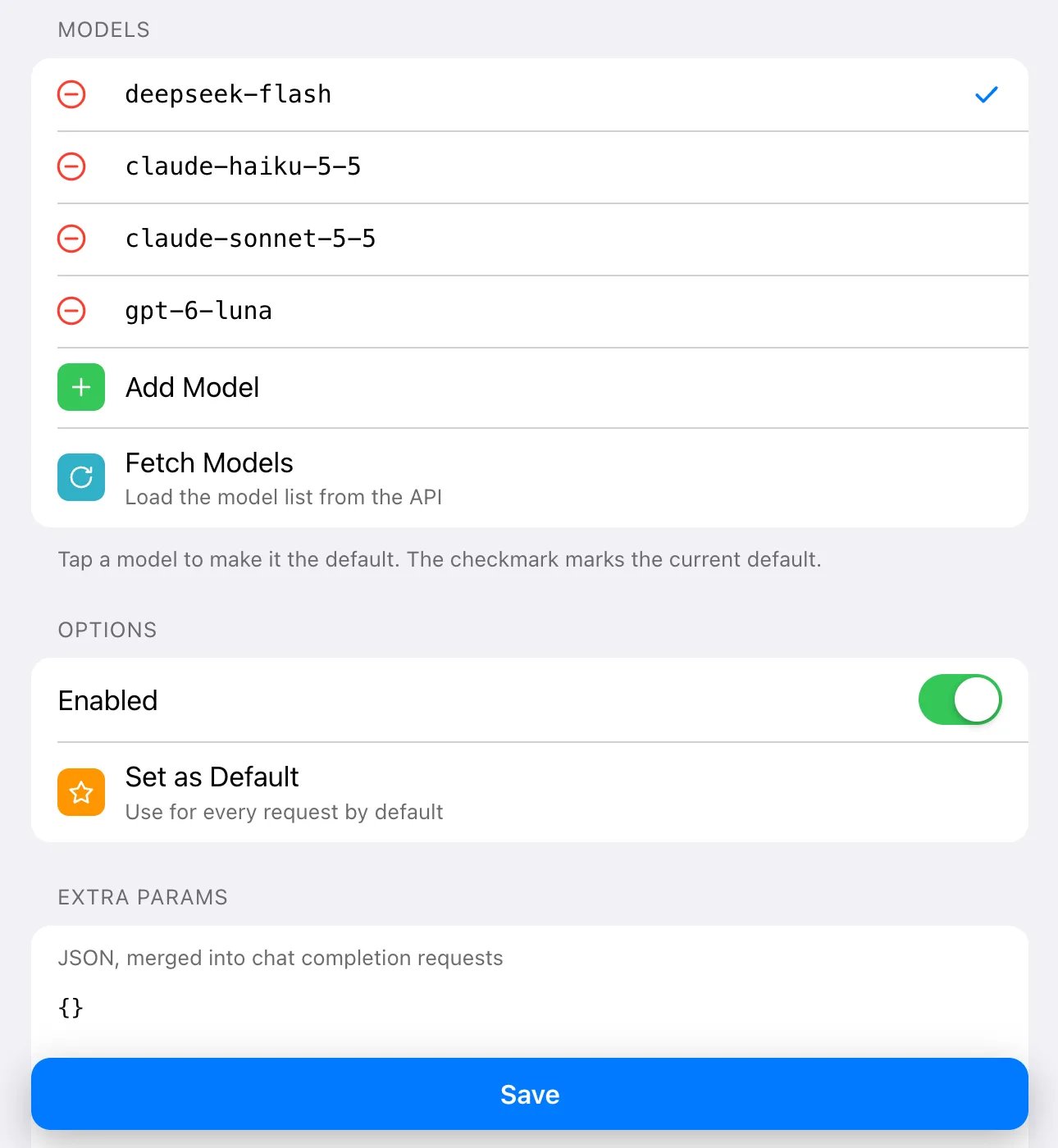
Step 6. Test it
Open your bot in Telegram:/setenv settings.language=en— the bot’s service messages are in Chinese by default, so switch them to English. To switch the / command menu to English too, open/initin your browser once more. This doesn’t affect the model: it answers in the language of your question./start— the bot says a new conversation has started.- Send “Hi, introduce yourself in one sentence” — the answer appears gradually as it’s generated.
/models→ RuAPI → pick another model, send/newand ask something else.- Send a photo with “what’s in this picture?”.
deepseek-flashcan’t see images — for photos switch to, say,claude-haiku-5-5. To see which models understand images, see Image input.
All bot commands
Commands in the Telegram menu (the / button next to the input field):
Commands not in the menu that still work:
In a private chat,
/admin, /system, /setenv, /setenvs and /delenv work only for ADMIN_ID. Plain JSON sent without a command goes to the model as text — it doesn’t change settings.
Useful settings
Change them on the admin panel’s Settings tab or with/setenv:
Reset a setting:
/delenv settings.systemInitMessage.
To let friends use the bot, add their Telegram IDs to the allowed users on the Settings tab. All their requests are charged to your RuAPI balance. Note that friends can also switch the model with /models, and it changes for everyone. Keep only affordable models in the Models list.
Costs
- Cloudflare: the free Workers plan is usually enough for a personal bot.
- RuAPI: you pay per token at the prices. With every message the bot resends the conversation history to the model, so each answer in a long chat costs more. Send
/newwhen you change the topic. - For Claude, RuAPI automatically caches the repeated start of the conversation: if you don’t pause for more than 5 minutes, the resent history is cheaper — see Prompt caching.
Troubleshooting
Connect a Git account to continue
Connect a Git account to continue
Cloudflare’s deploy requires a connected GitHub or GitLab account — this step can’t be skipped. Connect a separate empty account (see step 2).
The form won't submit: ADMIN_PASSWORD is required
The form won't submit: ADMIN_PASSWORD is required
The field is effectively required. Enter a long random password.
The bot doesn't reply
The bot doesn't reply
- Check that the workers.dev address is on (step 3) and
/initreported success. - Cloudflare Access must be off.
- ADMIN_ID is your numeric ID from @userinfobot, not your username.
The model claims to be a different model
The model claims to be a different model
After
/models the bot keeps the old conversation, and the new model sees what “it” wrote before. For example, Claude after a DeepSeek answer may call itself DeepSeek. Send /new after switching models.Error about starting with a trial model
Error about starting with a trial model
Until you top up, only
deepseek-flash, claude-haiku-5-5 and gpt-6-luna work. Pick one of them in /models or top up.The admin panel doesn't open
The admin panel doesn't open
The admin panel and
/init open via the *.workers.dev address. If it doesn’t open in your region or loads very slowly, try another network. Chatting with the bot goes through Telegram and isn’t affected.401 / invalid key
401 / invalid key
- API Key must be a RuAPI key
sk-.... - Base URL must be exactly
https://www.ruapi.ai/v1.
Security
- Your RuAPI key and bot token are stored in your Cloudflare account and don’t end up in the Git repository.
- You can create a separate RuAPI key for the bot with a spending limit, so at worst the bot spends no more than that limit.
- When you no longer need the bot: delete the Worker in Cloudflare, the bot with
/deletebotin @BotFather, the key in the RuAPI console, and the created repository in GitHub. Revoke Cloudflare’s access in GitHub (Settings → Applications).